
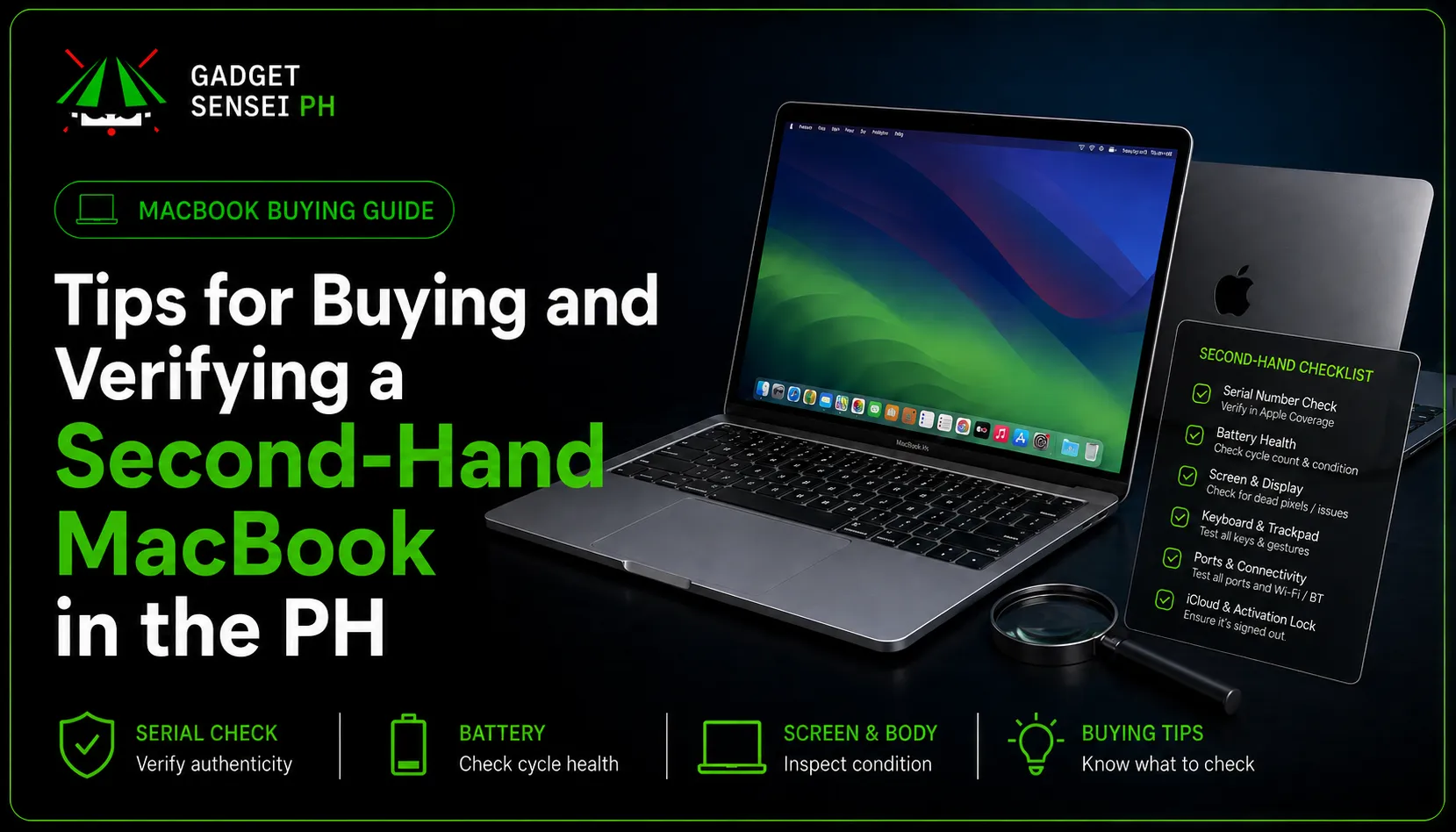
Buying a second-hand MacBook in the Philippines can be a smart move if you want an Apple laptop without paying full brand-new pricing. A used MacBook can be good for students, online work, office tasks, coding, editing, business use, and daily productivity.
But buying second-hand also comes with risk.
A MacBook can look clean in photos but still have hidden issues like weak battery health, high cycle count, Activation Lock, iCloud problems, keyboard issues, screen defects, charging problems, liquid damage, missing charger, or unclear repair history.
This guide will help you buy and verify a second-hand MacBook safely in the Philippines. You will learn what to check before contacting the seller, how to verify the exact model, how to inspect battery cycle count, how to check Activation Lock, how to test the screen, keyboard, trackpad, speakers, ports, and when it is better to buy brand new instead.
If you want to compare current MacBook options from Gadget Sensei PH, you can also browse the MacBook collection, where available models currently include MacBook Pro M4 14-inch, MacBook Pro M5 14-inch, and MacBook Pro M5 Pro 14-inch listings.
Quick Answer: Is It Safe to Buy a Second-Hand MacBook in the Philippines?
Yes, buying a second-hand MacBook in the Philippines can be safe if you verify the unit carefully and buy from a seller who allows full inspection.
A second-hand MacBook is worth considering if:
- The price is fair for the model and condition
- The exact model and specs are verified
- The battery cycle count is acceptable
- The battery condition is normal
- Activation Lock is removed
- The MacBook is signed out of the previous owner’s Apple Account
- The screen, keyboard, trackpad, speakers, camera, WiFi, Bluetooth, and ports work
- The charger is included and working
- The seller can explain repair history
- The seller allows testing before payment
A second-hand MacBook is risky if:
- The price is too good to be true
- The seller refuses testing
- The MacBook asks for another Apple Account
- The seller cannot remove Find My or Activation Lock
- The serial number does not match the model
- The battery cycle count is very high
- The keyboard or trackpad has issues
- The screen has lines, flicker, or dead pixels
- The charger is missing or suspicious
- The seller rushes the deal
Simple answer: second-hand MacBooks can be worth it, but only if the actual unit passes inspection.
Why Buy a Second-Hand MacBook in the Philippines?
A second-hand MacBook can be a good choice because MacBooks are usually expensive when bought brand new. Buying used lets you get a better Apple laptop for less money.
Better value for students and workers
Many students, freelancers, remote workers, and office users do not need the newest MacBook. A clean second-hand MacBook can still handle school work, documents, emails, browsing, Zoom, Google Workspace, Microsoft Office, Canva, and light editing.
For normal productivity, a well-kept Apple Silicon MacBook like an M1, M2, M3, or newer model can still feel fast and reliable.
Good for creative work on a budget
A second-hand MacBook Pro can be useful for photo editing, video editing, coding, music production, and design work.
But for heavier creative work, you need to check the exact chip, RAM, storage, battery condition, and display quality. Do not buy based on the “MacBook Pro” name alone. Some older Intel MacBooks may look premium but may not perform as well as newer Apple Silicon MacBooks.
Lower upfront cost
The biggest reason to buy second-hand is savings. You can often get a higher model for less compared to buying brand new.
However, cheaper is not always better. A low-priced MacBook with a weak battery, damaged screen, keyboard issues, or Activation Lock is not a good deal.
Second-Hand MacBook vs Brand-New MacBook: Which Should You Buy?
Before buying, decide if second-hand is really right for you.
A second-hand MacBook is better if you want to save money and you are willing to inspect the unit carefully.
A brand-new MacBook is better if you want fresh battery, warranty confidence, no previous owner history, and lower risk.
Lowest Price
Second-hand MacBookMore affordable upfront.
Fresh Battery
Brand new MacBookNo previous usage.
Warranty Confidence
Brand new MacBookSafer for long-term use.
Better Specs For Budget
Second-hand MacBookHigher model for less.
Low Risk
Brand new MacBookNo hidden owner history.
School And Office Use
EitherDepends on budget and condition.
Heavy Creative Work
DependsCheck chip, RAM, storage, and warranty.
Long-Term Peace Of Mind
Brand new MacBookBetter if budget allows.
Simple guide: choose brand new if you want fresh battery, warranty confidence, and lower risk. Choose second-hand if you want the lowest price or better specs for your budget, but only after proper inspection.
If you are unsure, compare the cost of a second-hand unit against current brand-new MacBook options. Gadget Sensei PH currently lists brand-new MacBook Pro models including the MacBook Pro M4 14-inch, MacBook Pro M5 14-inch, and MacBook Pro M5 Pro 14-inch. The MacBook collection shows current listed ranges for M4, M5, and M5 Pro models, but prices and availability can change depending on stock.
Where to Find Second-Hand MacBooks in the Philippines
There are several places to find second-hand MacBooks locally.
Facebook Marketplace and buy-and-sell groups
Facebook Marketplace has many MacBook listings in the Philippines. It can be affordable, but risk is higher because you are dealing with individual sellers.
Be careful with:
Very low prices
No actual photos
Seller refusing meetups
Seller asking for full payment before testing
Vague model details
No charger
No serial number
No proof of ownership
Only meet in safe public places and test the unit fully before payment.
Carousell and classified listings
Carousell and other classified platforms can also have used MacBooks. Check seller ratings, account age, item history, and reviews.
Ask for actual photos, About This Mac screenshots, battery cycle count, and charger details before meeting.
Local gadget shops and computer stores
Some shops in Greenhills, Gilmore, and malls sell second-hand or refurbished MacBooks. These can cost more than private sellers, but they may allow testing and may give short store warranty.
Ask:
How long is the warranty?
What does the warranty cover?
Was the MacBook repaired?
Is the charger original?
Is the battery original or replaced?
Can you test the unit before payment?
Friends, classmates, and referrals
Buying from someone you know can be safer, especially if the seller can explain the MacBook’s history. Still, you should inspect the unit properly. Familiar seller or not, battery cycle count, Activation Lock, serial number, screen, keyboard, and ports still need checking.
Checklist Before You Contact the Seller
Before agreeing to meet, ask the seller for these details.
Actual photos
Ask for real photos of:
Front screen on
Front screen off
Keyboard
Trackpad
Top lid
Bottom case
Left and right sides
Ports
Charger
Any dents or scratches
Box and receipt if available
Avoid listings that only use stock photos.
Exact model and year
Ask for the exact model name and year. Do not accept vague listings like “MacBook Pro i5” or “MacBook Air good condition.”
Ask the seller to send a photo of About This Mac.
Apple says users can find the Mac model name and serial number from the Apple menu by choosing About This Mac, and the same serial number can be checked through Apple’s coverage page to identify the model.
Chip, RAM, and Storage
Ask for:
- Chip: Intel, M1, M2, M3, M4, or M5
- RAM / unified memory: 8GB, 16GB, 24GB, 32GB, etc.
- Storage: 256GB, 512GB, 1TB, etc.
- Screen size: 13-inch, 14-inch, 15-inch, or 16-inch
- Battery cycle count
- Battery condition
- Charger inclusion
Important: these details affect price and performance.
Battery cycle count screenshot
Ask for a screenshot of battery information. Cycle count is important because MacBook batteries wear over time. Apple’s battery cycle count guide says the battery is considered consumed once it reaches its cycle count limit, and many modern MacBook models have a 1000-cycle limit.
A low cycle count is better, but battery condition and real usage still matter.
Activation Lock status
Ask the seller if the MacBook is signed out of their Apple Account and Find My is turned off.
Activation Lock is important because Apple explains that it requires the Apple Account password or device passcode before someone can turn off Find My, erase the Mac, or reactivate and use the Mac.
Do not buy a MacBook that still asks for the previous owner’s Apple Account.
How to Identify the Exact MacBook Model
You need to verify the exact model before discussing price.
Check About This Mac
Ask the seller to open:
Apple menu > About This Mac
Check:
Model name
Year
Chip
Memory
Storage
Serial number
macOS version
If the seller refuses, that is a warning sign.
Check the serial number
The serial number can be found in About This Mac, printed on the underside of the Mac, or on the original box. Apple’s MacBook model guide says the serial number can be entered on the Check Coverage page or Tech Specs page to find the model.
Make sure the serial number matches the model being advertised.
Why exact model matters
MacBooks can look similar outside but perform very differently.
For example:
An Intel MacBook Air and M1 MacBook Air can look simple but perform very differently.
A 13-inch MacBook Pro and 14-inch MacBook Pro can have different displays, ports, and chips.
A base chip and Pro chip MacBook can have different performance levels.
A 256GB model and 1TB model can have very different value.
Do not pay premium pricing unless the exact model, year, chip, RAM, and storage are verified.
Key Specs to Check Before Buying a Second-Hand MacBook
Chip
The chip is one of the biggest factors.
Simple guide:
Intel MacBook: Cheapest option, but older and less future-proof
M1 MacBook: Still practical for school, office work, and daily use
M2 MacBook: Better balance for newer design and performance
M3 MacBook: Stronger newer Apple Silicon option
M4 MacBook: Strong modern performance
M5 MacBook: Newer-generation performance and better long-term choice
M5 Pro / Max: Best for heavier professional work
For most students and office users, M1 or newer is usually better than older Intel MacBooks. For heavy editing, coding, production work, and long-term use, newer Pro chips are better.
Memory / RAM
Memory affects multitasking.
Simple guide:
8GB: Basic school, browsing, documents, and light use
16GB: Better for most buyers
24GB or 32GB: Better for creators, coders, heavier multitasking
36GB and above: For professional workloads
For 2026, 16GB is the safer minimum if budget allows, especially if you plan to keep the MacBook for years.
Storage
Storage cannot be upgraded easily later.
Simple guide:
256GB: Basic use only
512GB: Better minimum for most buyers
1TB: Better for creators, students with many files, and work users
2TB and above: For heavy editing, production, large files, and professionals
If you buy a 256GB MacBook, expect to use iCloud, Google Drive, external SSDs, or careful storage management.
Display
Check screen size and condition.
MacBook Air models are lighter and good for portability. MacBook Pro models usually have stronger displays and better performance options.
Check for:
Dead pixels
Flicker
Screen lines
Uneven brightness
Staingate or coating marks
Cracks
Pressure spots
Color issues
Keyboard marks on display
Screen repairs can be expensive, so inspect carefully.
Ports
Check if the ports match your needs.
Older MacBooks may have USB-A, HDMI, SD card, and MagSafe. Newer models may use USB-C / Thunderbolt and MagSafe depending on model.
If you are a student or office user, USB-C may be enough. If you are a photographer, editor, or presenter, HDMI and SD card support can be useful.
Charger
A missing charger should lower the price.
Check:
Original charger or quality replacement
Correct wattage
Cable condition
MagSafe or USB-C charging
Charging stability
No burn marks or frayed cable
Do not ignore charger condition. A bad charger can become an extra cost.
How to Verify a Second-Hand MacBook Before Paying
When you meet the seller, do not rush. Use this step-by-step inspection flow.
Confirm model, serial, chip, RAM, and storage
Open About This Mac and compare it with the listing.
Make sure the actual specs match what the seller promised.
Check Activation Lock and Apple Account
The MacBook must be removed from the seller’s Apple Account before payment.
Ask the seller to sign out and erase the MacBook properly if needed.
Reset path: on macOS Ventura 13 or later, go to System Settings > General > Transfer or Reset > Erase All Content and Settings to reset the Mac.
For MacBooks that support Erase All Content and Settings, this is a clean way to prepare the unit for a new owner.
Run Apple Diagnostics if possible
Apple Diagnostics can help check internal hardware like logic board, memory, and wireless components.
If the seller allows it, running Apple Diagnostics is a good extra step.
Check battery cycle count and condition
On macOS, check battery health and cycle count.
Look for:
- Cycle count
- Battery condition
- Maximum capacity if available
- Charging behavior
- Battery drain
- Heat while charging
Suggested guide:
Under 300 cycles
Very good if condition is normal.
300 to 600 cycles
Still okay depending on health.
600 to 900 cycles
Usable, but expect shorter battery life.
Near 1000 cycles
Battery may be close to consumed.
Service Recommended
Price should be lower or avoid.
Simple guide: cycle count is important, but always check battery condition, charging behavior, heat, and actual battery drain before paying.
Do not judge by cycle count alone. A MacBook with fewer cycles can still have poor battery health if it was stored badly.
5. Test keyboard and trackpad
Open Notes or Safari and type every key.
Check:
- All letters
- Numbers
- Spacebar
- Enter
- Shift
- Command
- Option
- Function keys
- Touch Bar if available
- Keyboard backlight
- Trackpad click
- Two-finger scroll
- Three-finger gestures
- Force click if supported
Tip: test the keyboard and trackpad slowly. Sticky keys, weak clicks, dead keys, or gesture problems can be expensive and annoying to deal with later.
Be extra careful with older 2016 to 2019 Intel MacBook Pro models because keyboard repairs can be costly.
6. Test the screen
Open a white background and black background.
Check:
Dead pixels
Bright spots
Dark spots
Screen lines
Flicker
Uneven brightness
Color tint
Staingate marks
Coating damage
Screen hinge looseness
Also adjust brightness from low to high.
7. Test speakers, camera, and microphone
Open FaceTime, Photo Booth, or any recording app.
Check:
Webcam clarity
Microphone recording
Speaker volume
Left and right speaker balance
No crackling sound
No muffled audio
This matters for online classes, Zoom meetings, work calls, and content use.
8. Test WiFi, Bluetooth, and ports
Connect to WiFi or a hotspot. Pair Bluetooth earbuds or a mouse if possible.
Test ports with available accessories:
Charger
USB-C device
HDMI if available
SD card if available
Headphones if available
Do not buy if important ports do not work.
9. Check heat and fan noise
Open several browser tabs, play a video, and test normal use for a few minutes.
Warning signs:
Overheating during light use
Very loud fan during simple tasks
Random restart
Freezing
Display glitching
Battery dropping quickly
Slow performance despite good specs
Older Intel MacBooks can run warmer than Apple Silicon models, but extreme heat during light tasks is not normal.
10. Check physical condition
Inspect the body carefully.
Check:
Dents
Bent frame
Loose hinge
Cracked screen
Missing screws
Liquid marks
Corrosion in ports
Swollen battery signs
Keyboard wear
Rubber feet
Lid alignment
Bottom case bulging
Avoid a MacBook with signs of swelling, liquid damage, or heavy frame damage.
Second-Hand MacBook Checklist: Pass, Warning, or Avoid
Serial Number
PassMatches model and listing
WarningSeller needs time to provide
AvoidRefuses serial check
Activation Lock
PassRemoved and reset-ready
WarningSeller has not erased yet
AvoidStill linked to Apple Account
Battery
PassNormal condition, fair cycles
WarningHigh cycles but discounted
AvoidService Recommended with high price
Screen
PassClean and bright
WarningMinor marks only
AvoidLines, flicker, dead pixels
Keyboard
PassAll keys working
WarningSlight wear
AvoidSticky, missing, or dead keys
Trackpad
PassSmooth and responsive
WarningMinor cosmetic wear
AvoidNo click or poor tracking
Ports
PassAll working
WarningOne port loose but disclosed
AvoidCharging or main ports fail
Charger
PassIncluded and stable
WarningReplacement charger
AvoidNo charger or unsafe charger
Seller
PassAllows testing
WarningRushed but cooperative
AvoidRefuses testing
Simple guide: pass means the unit is safer to consider, warning means negotiate or test more, and avoid means the risk is too high unless the issue is clearly disclosed and priced properly.
Common Red Flags When Buying a Second-Hand MacBook
Avoid or think twice if:
- The price is too cheap
- The seller refuses to meet
- The seller refuses serial checking
- The MacBook asks for another Apple Account
- Activation Lock is still on
- The battery says Service Recommended
- The screen has lines or flicker
- The keyboard has dead keys
- The trackpad does not click properly
- The charger is missing
- The MacBook overheats during light use
- The serial number does not match the listing
- The seller cannot explain repair history
- The seller rushes payment
- The seller wants full payment before testing
The biggest red flag is a seller who does not allow proper checking.
Used MacBook Price Guide in the Philippines
Used MacBook prices change often based on model, chip, RAM, storage, battery health, condition, charger, warranty, and demand.
Instead of relying on fixed prices, use this value guide:
Very cheap
Possible issue, scam, damaged unit, or locked MacBook.
Slightly below average
Good if condition is clean.
Average price
Compare battery, specs, and warranty.
Higher than average
Should have better specs or condition.
Close to brand-new price
Consider buying brand new instead.
Simple guide: the price should match the MacBook’s chip, RAM, storage, battery cycle count, condition, warranty support, and seller reliability.
Before buying, compare:
Exact model
Chip
RAM
Storage
Cycle count
Battery condition
Screen condition
Keyboard condition
Charger inclusion
Warranty or store support
Current brand-new alternatives
If a used MacBook price is too close to a brand-new MacBook, it may be better to buy brand new.
When Brand New MacBook Makes More Sense
A second-hand MacBook is not always the best choice. Sometimes brand new is smarter.
Choose brand new if:
The used price is too close to brand-new pricing
You want fresh battery
You want warranty confidence
You need the laptop for business or school reliability
You do not want hidden repair risks
You plan to keep the MacBook for many years
You want the newest chip and long-term support
Gadget Sensei PH currently lists brand-new MacBook Pro options like the MacBook Pro M4 14-inch, which shows configurations such as 16GB/512GB, 16GB/1TB, and 24GB/1TB, with Space Black and Silver options.
The MacBook Pro M5 14-inch page lists the M5 model with a 14.2-inch Liquid Retina XDR display, ProMotion up to 120Hz, M5 chip, 16-core Neural Engine, 153GB/s memory bandwidth, and up to 24 hours of video streaming.
The MacBook Pro M5 Pro 14-inch page lists a 24GB/1TB configuration and positions it for heavier creative, coding, and production work.
Which MacBook Should You Choose by Buyer Type?
Students
Best choice: MacBook Air M1 or newer, or brand-new MacBook if budget allows.
Students usually need portability, battery life, smooth performance, and reliable video calls. A clean M1 or newer MacBook is usually enough for notes, research, documents, online classes, browsing, and light editing.
Office Workers and Freelancers
Best choice: M1, M2, M3, M4, or newer MacBook Air / MacBook Pro.
Prioritize battery health, keyboard comfort, screen quality, and storage. If you work online daily, avoid units with poor battery or keyboard issues.
Creators and Editors
Best choice: MacBook Pro with M-series chip, preferably 16GB RAM or higher.
For photo editing, video editing, design, and creative work, RAM and storage matter. Avoid underpowered or very old Intel units unless your workload is light.
Coders and Developers
Best choice: M-series MacBook with enough RAM and storage.
For coding, web development, app development, and multitasking, 16GB RAM or higher is safer. Storage also matters if you use development tools, emulators, Docker, or large project files.
Heavy Professional Users
Best choice: Pro chip MacBook.
If you use Final Cut, Logic Pro, Xcode, 3D, heavy video editing, or large projects, consider higher RAM, higher storage, and Pro chip models. The MacBook Pro M5 Pro is a better fit for demanding workflows than a basic second-hand unit.
Simple guide: choose based on your actual work, not just the price. For light use, MacBook Air M1 or newer can be enough. For heavier work, prioritize Pro chip models, higher RAM, better storage, and warranty confidence.
What to Do After Buying a Second-Hand MacBook
After buying, set up the MacBook properly.
Erase and reset the MacBook
Start fresh. Make sure the previous owner’s account is gone. Use Erase All Content and Settings if supported, or reinstall macOS through recovery.
Sign in with your Apple Account
Set up your own Apple Account, iCloud, App Store, and Find My.
Update macOS
Install the latest macOS version supported by the MacBook. This improves security and compatibility.
Check battery and performance again
After setup, check battery health, cycle count, charging behavior, and performance.
Install essential apps
Install the apps you need for school, work, editing, meetings, or business.
Turn on security features
Set a strong password, enable Touch ID if available, turn on Find My, and consider FileVault for data protection.
Set up backup
Use Time Machine with an external drive or cloud storage for important files.
Simple guide: do not treat setup as optional. A clean reset, updated macOS, your own Apple Account, security settings, and backup setup help make the second-hand MacBook safer to use.
Final Recommendation
Buying a second-hand MacBook in the Philippines can be worth it if you know how to verify the unit.
A used MacBook is good if:
The price is fair
The model is verified
The battery condition is acceptable
The cycle count is not too high
Activation Lock is removed
The screen, keyboard, trackpad, ports, and charger work
The seller allows proper testing
The unit fits your school, work, or creative needs
Buy brand new if:
You want fresh battery
You want warranty confidence
You want lower risk
You need the laptop for important work
The used price is too close to brand-new pricing
You want the newest chip and longer support
For most buyers, the best second-hand MacBook is not the cheapest one. It is the unit with the best balance of price, specs, battery, condition, and seller trust.
Before paying, verify the model, check Activation Lock, inspect battery cycle count, test the screen and keyboard, and make sure the seller lets you test everything.
If you want a safer brand-new option instead, you can compare current MacBook models at Gadget Sensei PH.
Frequently Asked Questions
Is it safe to buy a second-hand MacBook in the Philippines?
Yes, it can be safe if you verify the model, serial number, battery cycle count, Activation Lock status, screen, keyboard, trackpad, charger, and seller legitimacy before paying.
What should I check before buying a second-hand MacBook?
Check the exact model, chip, RAM, storage, serial number, battery cycle count, battery condition, Activation Lock, screen, keyboard, trackpad, speakers, camera, ports, charger, and physical condition.
How do I check if a MacBook is Activation Locked?
Turn on the MacBook and check if it asks for another person’s Apple Account or password. The seller must sign out of iCloud, turn off Find My, and erase the Mac before payment. Do not buy if the MacBook is still locked to another Apple Account.
What battery cycle count is good for a used MacBook?
Under 300 cycles is very good if the battery condition is normal. 300 to 600 cycles can still be okay. 600 to 900 cycles is usable but should be priced lower. Near 1000 cycles or Service Recommended means the battery may need replacement soon.
How do I verify the exact MacBook model?
Open Apple menu, then About This Mac. Check the model name, year, chip, memory, storage, and serial number. You can also use the serial number on Apple’s Check Coverage page to confirm the model.
Is an Intel MacBook still worth buying in 2026?
An Intel MacBook can still be okay for basic tasks if the price is low and condition is good. But for most buyers, an M1 or newer MacBook is usually a better choice for performance, battery life, and long-term use.
Is MacBook Air or MacBook Pro better second-hand?
MacBook Air is better for students, office work, portability, and basic daily use. MacBook Pro is better for heavier work like editing, coding, design, and professional apps.
Should I buy second-hand MacBook or brand new MacBook?
Buy second-hand if you want to save money and can inspect the unit properly. Buy brand new if you want fresh battery, warranty confidence, lower risk, and longer peace of mind.
What is the biggest red flag when buying a used MacBook?
The biggest red flag is Activation Lock or a seller who refuses testing. Other red flags include very low price, missing charger, high battery cycles, Service Recommended battery, screen issues, dead keys, and unclear ownership.
Where can I check MacBook options from Gadget Sensei PH?
You can check the MacBook collection at Gadget Sensei PH to compare available MacBook models, including current brand-new MacBook Pro M4 and M5 options.