
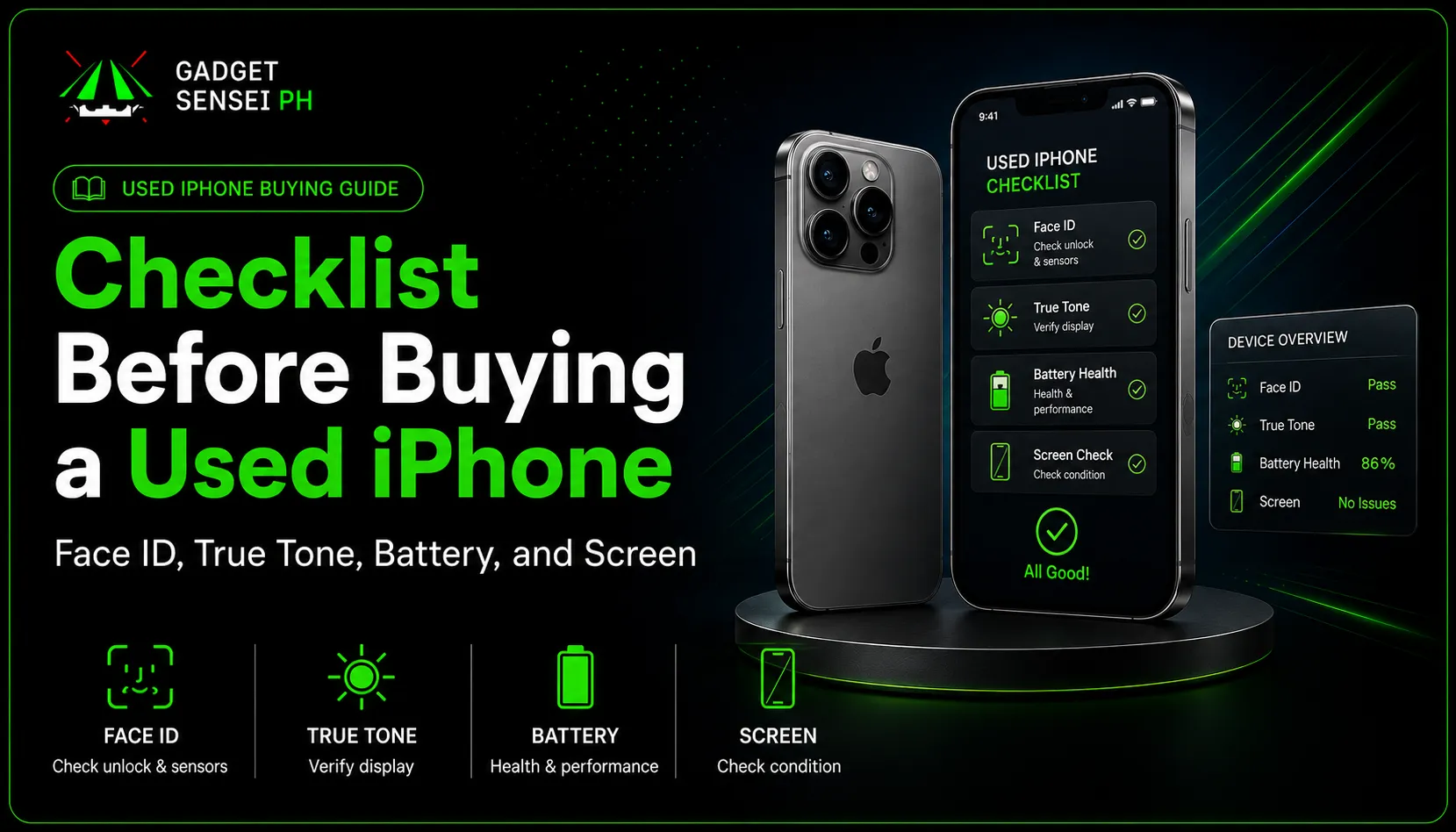
A used iPhone can look clean in photos, but the real condition only shows when you test the actual unit. Some iPhones look okay outside but may have hidden issues like broken Face ID, missing True Tone, weak battery health, screen ghost touch, unknown part warnings, camera problems, charging issues, or iCloud / Activation Lock problems.
This guide is not a full general used iPhone buying guide. This is a hands-on used iPhone inspection checklist for buyers who already found a unit and want to inspect it before paying.
The goal is simple: check the actual iPhone, not just the model name or price.
A cheap iPhone is not always a good deal if basic features have problems. If Face ID is not working, True Tone is missing without explanation, battery health is low, or the screen has touch issues, the price should be lower or you should look for a better unit.
This checklist focuses on Face ID, True Tone, battery health, screen condition, Parts and Service History, Unknown Part warnings, iCloud / Activation Lock, cameras, speakers, charging, SIM signal, WiFi, Bluetooth, buttons, and physical condition.
If you want the broader guide covering used iPhone prices, where to buy, IMEI checks, scams, network lock, and trade-in topics, read our complete used iPhone buying guide in the Philippines.
Quick Answer: What Should You Check Before Buying a Used iPhone?
Before buying a used iPhone, check these first:
Face ID works
True Tone is available
Battery health is acceptable
Screen has no ghost touch, dead spots, flicker, or heavy discoloration
Parts and Service History has no suspicious warnings
iCloud / Apple Account is removed
Cameras and flash work
Speakers and microphone work
Charging port works properly
SIM signal, WiFi, and Bluetooth work
Buttons and vibration work
Storage matches the listing
No hidden cracks, dents, moisture, or water damage signs
If Face ID does not work, True Tone is missing, battery health is too low, or the iPhone shows Unknown Part warnings, do not ignore it. It does not always mean the phone is unusable, but it should affect the price and your decision.
A slightly more expensive used iPhone with clean condition and working features can be a better buy than a cheaper unit with hidden issues.
Used iPhone Inspection Checklist: Pass, Warning, or Avoid?
Use this table while checking the unit. It helps you decide if the iPhone is safe to consider, needs more inspection, or should be avoided.
Face ID
PassSets up and unlocks normally
WarningWorks sometimes
AvoidFace ID not available
True Tone
PassOption appears and works
WarningMissing but seller explains repair
AvoidMissing plus bad screen quality
Battery Health
Pass85% and above
Warning80% to 84%
AvoidBelow 80% with high price
Screen Touch
PassSmooth touch everywhere
WarningMinor scratches only
AvoidGhost touch, dead spots, flicker
Parts History
PassNo suspicious warning
WarningReplaced part clearly explained
AvoidUnknown part with no explanation
iCloud
PassSigned out and reset-ready
WarningSeller needs time to remove
AvoidActivation Lock remains
Camera
PassClear photos and video
WarningMinor cosmetic lens marks
AvoidBlurry, shaking, or broken camera
Charging
PassStable charging
WarningPort feels loose
AvoidDisconnects often
The best used iPhone is not always the newest model. It is the unit with the best balance of condition, battery health, storage, price, and seller support.
30-Second Used iPhone Inspection Flow Before Paying
When you are already holding the iPhone, use this quick inspection flow before paying:
- Open Settings > General > About.
- Confirm the model, storage, IMEI, and Parts and Service History.
- Open Settings > Battery > Battery Health & Charging.
- Open Settings > Display & Brightness and check True Tone.
- Open Settings > Face ID & Passcode and test Face ID.
- Drag an app icon around the whole screen to test touch response.
- Open Camera and test front camera, rear camera, video, flash, and focus.
- Record a voice memo and play it back.
- Insert your SIM and test signal.
- Check that iCloud / Apple Account is removed before final payment.
This does not replace a full inspection, but it quickly shows the most common hidden issues.
Why Face ID Is One of the First Things to Check
Face ID is one of the most important features to test before buying a used iPhone. If Face ID is not working, the iPhone may have TrueDepth camera issues, repair history, impact damage, water damage, or other hardware problems.
Face ID is not only for unlocking the phone. It is also used for App Store purchases, banking apps, password autofill, secure apps, and other daily features.
How to check Face ID on a used iPhone:
- Go to Settings.
- Tap Face ID & Passcode.
- Try setting up Face ID.
- Lock the phone.
- Unlock it using Face ID.
- Test Face ID in App Store or other supported apps if possible.
Warning signs:
Face ID cannot be set up
The phone says Face ID is not available
Face ID works only sometimes
Seller says “password na lang gamitin”
Front camera area has cracks, dents, or moisture marks
Screen protector or dirt is blocking the TrueDepth camera area
Apple has an official support page for Face ID problems here: Apple’s guide for Face ID issues.
For most buyers, working Face ID should be a priority.
What Does It Mean If Face ID Is Not Working on a Second-Hand iPhone?
If Face ID is not working on a second-hand iPhone, treat it as a serious warning sign unless the price clearly reflects the issue and you are okay using passcode only.
A used iPhone with no Face ID is not automatically unusable, but it should not be priced like a clean unit.
Do not accept “Face ID issue lang” too casually. Face ID problems can affect convenience, security, resale value, and buyer confidence.
Before considering the unit, ask:
Why is Face ID not working?
Was the screen or front camera area repaired?
Did the phone suffer impact or water damage?
Does the front camera still work normally?
Is the issue clearly reflected in the price?
For normal daily users, students, business owners, and buyers who want a clean iPhone, it is usually better to choose a unit with working Face ID.
How to Check True Tone Before Buying a Used iPhone
True Tone is a display feature that adjusts the screen’s color and intensity based on ambient light. On supported iPhone models, the True Tone option should appear in display settings.
How to check True Tone:
- Open Settings.
- Tap Display & Brightness.
- Look for True Tone.
- You can also open Control Center, long-press the brightness slider, and check if True Tone appears.
- Turn True Tone on and off to see if the screen color adjusts.
Warning signs:
True Tone option is missing
Screen color looks too blue or too yellow
Brightness looks weak
Display has uneven color
Screen has lines, flicker, or dead spots
Seller cannot explain if the screen was replaced
Apple explains True Tone in its display settings guide here: Apple’s guide to True Tone and display settings.
True Tone should not be the only thing you check, but it is a strong reason to inspect the screen more carefully.
Does Missing True Tone Mean the iPhone Screen Was Replaced?
Missing True Tone can be a warning sign, but do not judge the unit based on True Tone alone.
It may suggest a display replacement or display-related issue, especially if the iPhone model supports True Tone and the option is missing. But the better approach is to check True Tone together with screen quality, touch response, brightness, Parts and Service History, Face ID, and the seller’s repair disclosure.
Missing True Tone is not always automatic proof that the screen is bad. But it should make you ask more questions.
Ask the seller:
Was the screen replaced?
When was it replaced?
Was it disclosed before sale?
Does the screen have any issue?
Does Parts and Service History show any display message?
Avoid units where True Tone is missing and the screen also has ghost touch, uneven color, flicker, dead spots, or Unknown Part warnings with no explanation.
How to Check Battery Health on a Used iPhone
Battery health for used iPhones is one of the easiest and most important things to check before buying one.
A lower battery health percentage can mean shorter usage time, more charging, and possible battery replacement soon.
How to check battery health:
- Open Settings.
- Tap Battery.
- Tap Battery Health & Charging or Battery Health.
- Check Maximum Capacity.
- Check Peak Performance Capability.
- Look for battery warning messages.
- On newer models, check cycle count if available.
Recommended battery health:
Apple explains iPhone battery maximum capacity and performance here: Apple’s iPhone battery and performance guide.
Battery health affects the real value of the unit. A used iPhone with 88% battery health can still be okay if the unit is clean and the price is fair. But a unit below 80% should usually be treated as a phone that may need battery replacement soon.
How to Check the iPhone Screen Before Buying
The screen is one of the most important parts of a used iPhone. Do not only check for cracks. Test touch response, brightness, color, lines, dead spots, ghost touch, flicker, True Tone, and screen lifting.
Screen checklist:
- Check for cracks and deep scratches
- Check for green lines, white lines, black spots, or flicker
- Open a white screen and look for yellowing or uneven brightness
- Open a dark screen and look for light bleed or dead pixels
- Drag an app icon across the whole screen to test touch
- Type on the keyboard to test touch response
- Scroll slowly to check for ghost touch
- Check if brightness goes up and down normally
- Check True Tone and Night Shift
- Check if the screen lifts from the frame
- Check for Unknown Display messages in Parts and Service History
A screen with ghost touch, dead spots, flicker, or lines is a big warning sign. These issues affect daily use and may be costly to fix.
Minor scratches can be acceptable if the price is fair. But display problems that affect function should not be ignored.
How to Check Parts and Service History on iPhone
Parts and Service History can help buyers see if an iPhone has had certain repairs and whether some parts are recognized by the system. This is useful when checking a used iPhone because it gives more transparency about the display, battery, camera, or other repairs on supported models and iOS versions.
How to check Parts and Service History:
- Open Settings.
- Tap General.
- Tap About.
- Look for Parts and Service History.
- Check if any part is marked as genuine, used, unknown, or replaced.
- Ask the seller about any repair history shown.
Warning signs:
- Unknown Part message
- Battery not recognized
- Display not recognized
- Camera warning
- Seller refuses to explain repair history
Parts history does not match the seller’s story
Apple explains this feature here: Apple’s Parts and Service History guide.
Repair history does not automatically mean the iPhone is bad. The bigger issue is unclear repair history, hidden issues, or a seller who refuses to explain what happened.
What Does Unknown Part Mean on a Used iPhone?
An Unknown Part message means the iPhone cannot verify the part in the usual way. This does not always mean the phone is unusable, but it should make buyers more careful.
Common Unknown Part messages may involve:
- Battery
- Display
- Camera
Why it matters:
- It can affect buyer trust
- It may lower resale value
- It may suggest a previous repair
- The repair quality may be unclear
- The affected part needs more testing
What to do:
- Ask for the repair history
- Test the affected part carefully
- Compare the price with clean units
- Do not pay clean-unit pricing for unclear repair history
- Avoid if the seller cannot explain the warning
For example, if the iPhone shows an Unknown Display message, test the screen carefully. Check touch, brightness, color, flicker, True Tone, and screen lifting. If it shows Unknown Battery, check charging, battery drain, battery health visibility, and heat.
iCloud and Apple Account Check Before Buying
A used iPhone should not be linked to the previous owner’s Apple Account when you buy it.
If Activation Lock or the previous owner’s account remains, the phone can become unusable for you later.
Checklist:
- Go to Settings and check if an Apple Account is still signed in
- Ask the seller to sign out before payment
- Check Find My iPhone status
- Erase all content and settings only after the seller removes the account
- Restart and activate the phone if possible
- Do not buy if the seller cannot remove the account
Warning signs:
- Seller says “forgot password”
- Seller says “account will be removed later”
- Phone is already reset but asks for the previous Apple ID
- Seller rushes the sale and avoids activation testing
Apple explains Activation Lock here: Apple’s guide for Activation Lock.
This is one of the biggest checks before paying. Never finalize the purchase if the iPhone is still locked to another person’s Apple Account.
Camera, Speaker, Microphone, and Charging Checks
After checking Face ID, True Tone, battery, screen, parts history, and iCloud, test the daily-use features.
Camera checks:
Take a rear camera photo
Take a front camera selfie
Test ultra-wide camera if available
Test Portrait mode
Record a video
Test flash
Tap to focus
Check lens clarity
Watch for camera shake or blurry output
Speaker and microphone checks:
Play music or a video
Record a voice memo
Play the recording back
Make a test call
Test loudspeaker
Test earpiece speaker
Record video and check microphone quality
Charging checks:
Plug in a charging cable
Check if charging is stable
Wiggle the cable gently to see if charging disconnects
Check if the port feels loose
Check for dirt or damage in the port
Test wireless charging if supported
A weak microphone, unstable charging port, or blurry camera may not be obvious in photos. You need to test them before paying.
SIM Signal, WiFi, Bluetooth, and Buttons Checklist
These are simple checks, but they matter for daily use.
SIM and network checks:
Insert your SIM if possible
Check signal bars
Make a call
Send a text
Test mobile data
Confirm openline status if needed
WiFi and Bluetooth checks:
Connect to WiFi
Open a website or app
Pair with Bluetooth earbuds or another device
Check if the connection drops
Buttons and physical function checks:
Power button
Volume buttons
Silent switch or Action button if available
Vibration
Haptic feedback
Flashlight
Orientation / auto-rotate
Proximity sensor during calls
If the phone cannot read SIM, has weak signal, or has button issues, think carefully. These can become daily annoyances.
Physical Condition and Water Damage Signs
Physical condition can tell you how the iPhone was handled. A few small scratches can be normal for a used unit, but heavy dents, bent frame, lifted screen, camera cracks, and moisture signs are more serious.
Check:
Frame dents
Back glass cracks
Camera glass cracks
Screen lifting
SIM tray area
Charging port corrosion
Moisture inside camera lens
Buttons that feel stuck
Uneven gaps around the screen
Signs of previous opening or repair
Minor scratches are usually acceptable if the price is fair. But obvious impact damage, screen lifting, moisture marks, or a bent frame should make you think twice.
What Issues Are Acceptable If the Price Is Lower?
Not every issue means the iPhone is automatically bad. Some issues can be acceptable if they are clearly disclosed and the price is lower.
Acceptable only if clearly disclosed and discounted:
Battery health around 80% to 84%
Minor scratches
Small dents that do not affect use
Replaced battery with clear explanation
Replaced screen if touch, brightness, True Tone, and display quality are still acceptable
Usually not worth it for normal buyers:
Face ID not working
iCloud / Activation Lock issue
Ghost touch
Dead screen spots
Unknown Part warning with no explanation
Camera shake or blurry camera
SIM signal issue
Charging port disconnecting
The rule is simple: if the issue affects daily use, security, charging, signal, screen, or camera, be more careful. The discount should be worth the risk.
Used iPhone Red Flags You Should Avoid
Avoid or think twice if:
Face ID is not working
True Tone is missing and the seller cannot explain why
Battery health is very low
Battery health is not showing
The phone has Unknown Part warnings
Screen has ghost touch, lines, flicker, or dead spots
iCloud / Apple Account is still signed in
Seller refuses testing
Seller rushes payment
Phone cannot read SIM
Cameras are blurry or shaking
Charging port disconnects
Repair history is unclear
The unit has no warranty, receipt, or support from the seller
The biggest red flag is not just the issue itself. It is when the seller hides the issue, refuses testing, or prices the unit like it is clean.
Gadget Sensei PH Used iPhone Inspection Checklist
At Gadget Sensei PH, a good used iPhone should be checked beyond just model and price. Buyers should look at the actual condition, battery health, Face ID, True Tone, screen quality, storage, cameras, speakers, signal, and seller support before deciding.
Simple inspection summary:
Does Face ID work?
Is True Tone available?
Is battery health acceptable?
Is the screen clean and responsive?
Does Parts and Service History show any warnings?
Is iCloud removed?
Are the cameras clear?
Are speakers and microphones working?
Is charging stable?
Does the SIM signal work?
Is the price fair for the condition?
If you want checked options, you can compare checked pre-owned iPhone options from Gadget Sensei PH and choose based on actual unit condition, storage, battery health, and price.
What Is The Most Important Thing To Check Before Buying A Used iPhone?
The most important things to check before buying a used iPhone are Face ID, True Tone, battery health, screen condition, Parts and Service History, and iCloud / Apple Account status.
If these areas are clean, the unit is usually safer to consider. If any of them have issues, the price should be lower or the buyer should look for a better unit.
Best Signs:
- Working Face ID
- Available True Tone
- Good battery health
- Clean and responsive screen
- No iCloud issue
- No suspicious parts warning
- Clear repair explanation
- Seller allows inspection
Biggest Red Flags:
- Face ID issue
- Missing True Tone with unclear repair history
- Low battery health
- Unknown Part warning with no explanation
- Ghost touch
- Activation Lock
- Seller refusing inspection
Important: do not only look at price. Always check the actual unit condition before paying.
Frequently Asked Questions
What should I check before buying a used iPhone?
Before buying a used iPhone, check Face ID, True Tone, battery health, screen condition, Parts and Service History, iCloud status, cameras, speakers, microphone, charging port, SIM signal, WiFi, Bluetooth, buttons, storage, and physical condition.
How do I know if Face ID works on a used iPhone?
Go to Settings, tap Face ID & Passcode, and try setting up Face ID. Then lock and unlock the phone using Face ID. If it cannot be set up or says Face ID is not available, treat it as a warning sign.
Is missing True Tone bad on a used iPhone?
Missing True Tone can be a warning sign, especially if the iPhone model supports True Tone and the seller cannot explain why it is missing. It may suggest a display replacement or display-related issue, so check the screen and repair history carefully.
What battery health is good for a used iPhone?
For a used iPhone, 90% and above is very good, 85% to 89% is still okay for many buyers, and 80% to 84% can be acceptable only if the price is lower. Below 80% is risky unless battery replacement is planned.
How do I check if an iPhone screen is original?
Check True Tone, screen color, brightness, touch response, ghost touch, lines, flicker, and Parts and Service History. On supported iPhones and iOS versions, the About section may show display repair information.
What does Unknown Part mean on iPhone?
Unknown Part means the iPhone cannot verify the part in the usual way. It does not always mean the iPhone is unusable, but buyers should ask about repair history and test that part carefully before buying.
Should I buy a used iPhone with Face ID issue?
For most buyers, it is better to avoid a used iPhone with Face ID issue unless the price is much lower and the issue is clearly disclosed. A Face ID issue can affect convenience, security, and resale value.
What issues are acceptable if the used iPhone is cheaper?
Minor scratches, small dents, battery health around 80% to 84%, or a clearly explained replaced battery can be acceptable if the price is lower. But Face ID issues, iCloud lock, ghost touch, camera shake, SIM problems, and unexplained Unknown Part warnings are usually not worth it for normal buyers.